
DTG printing is a great way to print designs on shirts. It gives bright color and soft feel. But the final print depends on your artwork. If your file is not set up the right way, the print may look dull or blurry. That is why artwork prep is very important.Many people rush the design step. They upload low-quality images and expect sharp prints. Others try to Create a Vector File for DTG Printing without knowing what the printer really needs. This leads to poor results. With the right steps, you can prepare artwork that prints clean and bold every time.
At Embroidery Digitizing Services in USA - Digitizing Buddy, we work with design files every day. We handle artwork for print and stitch. We check files before they go to print. In this guide, I will share simple and clear steps to help you prepare artwork for high-quality DTG prints.
What Is DTG Printing?
DTG means Direct to Garment. It is a printing method where ink goes straight onto the fabric.
The printer works like a paper printer. But instead of paper, it prints on shirts. The ink soaks into the fabric fibers. This gives a soft feel and bright look.
DTG works best with cotton shirts. It can print full-color designs. But the artwork must be high quality.
Why Artwork Quality Matters
Your printer can only print what it sees in the file.
If the image is blurry, the print will be blurry.
If the colors are dull, the print will look dull.
If the file size is small, the design may look pixelated.
Good artwork means good print. It is that simple.
Step 1: Use High-Resolution Images
Resolution is key in DTG printing.
What Resolution Should You Use?
Use at least 300 DPI. This keeps the image sharp.
Low DPI images look fine on screen. But when printed large, they lose detail.
Check Image Size
Make sure the file size matches your print size.
If you want a 10-inch wide print, your image should already be set to that size at 300 DPI.
Do not stretch small images. Stretching causes blur.
Step 2: Choose the Right File Format
File format matters.
PNG Files
PNG files are best for DTG. They support transparent backgrounds.
Use PNG when your design has no background.
PSD or TIFF
These formats keep layers and detail. They are good for complex designs.
Avoid low-quality JPG files when possible.
Step 3: Work in the Right Color Mode
DTG printers use CMYK ink.
Set your file to CMYK color mode before saving.
RGB colors may look bright on screen. But they can shift when printed.
Always preview colors in CMYK to avoid surprise changes.
Step 4: Remove Backgrounds Cleanly
If your design does not need a background, remove it.
Use clean edges.
Zoom in to check rough areas.
Avoid white boxes behind logos.
A clean background gives a clean print.
Step 5: Keep Colors Solid and Clear
DTG prints full color well. But clean colors give better results.
Avoid very light shades on light shirts.
Avoid very dark shades on dark shirts without white base.
Check contrast before printing.
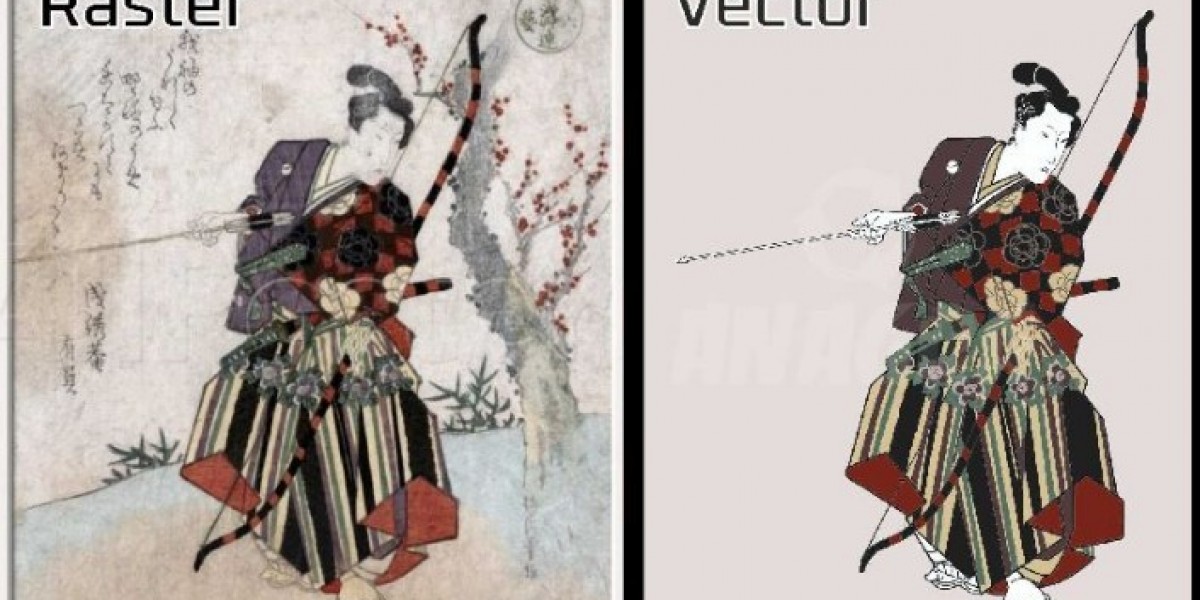
Step 6: Use Vector Graphics When Possible
Vector graphics stay sharp at any size.
They are great for:
Text
Logos
Line art
Vectors allow easy editing. They also help keep edges smooth.
If you design logos often, learning vector tools helps a lot.
Step 7: Prepare for Dark Garments
Printing on dark shirts needs a white underbase.
The printer lays white ink first. Then it prints colors on top.
Make sure your file:
Has strong color contrast
Does not rely on shirt color
Avoids thin light lines
Thin lines may fade over white base.
Step 8: Check Transparency and Effects
Some effects do not print well.
Avoid:
Heavy glow effects
Very soft shadows
Low-opacity layers
Flat and clean designs print best.
Step 9: Test Print Before Bulk Order
Always print one sample first.
Check for:
Sharp edges
True colors
Smooth ink feel
Proper placement
Small tests prevent big losses.
From our daily work at Embroidery Digitizing Services in USA - Digitizing Buddy, test prints save time and money.
Common Mistakes to Avoid
Many beginners make these errors:
Using web images
Ignoring resolution
Sending RGB files
Forgetting transparent background
Placing design too close to collar
Avoid these simple mistakes for better results.
Real Example From Experience
A small clothing brand once sent a logo saved from social media. It looked fine online. But when printed large, it was blurry.
We asked for the original file. We rebuilt the design in high resolution. After fixing color and size, the print came out sharp and bright.
This shows that file quality matters more than screen look.
How to Check Artwork Before Sending
Before you send your file to print, ask yourself:
Is it 300 DPI?
Is it correct size?
Is it in CMYK?
Is the background removed?
Are colors strong and clear?
If yes, your file is ready.
Why Professional File Review Helps
Even simple designs can have hidden issues.
At Embroidery Digitizing Services in USA - Digitizing Buddy, we review artwork carefully. We check resolution, color mode, and edge quality.
This step ensures smooth printing and reduces costly mistakes.
Professional review builds trust. It also saves reprint costs.
Tips for Long-Lasting DTG Prints
Artwork is only one part.
Also remember:
Use quality cotton shirts
Pre-treat dark garments
Cure ink at correct heat
Wash inside out
Good care keeps prints bright for long time.
Grow Your Skills Step by Step
Start with simple designs.
Learn how colors look on fabric.
Test light and dark shirts.
Compare RGB vs CMYK.
With each project, you learn more.
Skill builds over time.
Final Thoughts
Preparing artwork for DTG printing is simple when you follow the right steps.
Remember:
Use high resolution
Pick correct file format
Set CMYK color mode
Remove backgrounds cleanly
Test before full production
Good artwork leads to great prints.
With smart planning and careful checks, your DTG prints will look bright, sharp, and professional. And when you need expert file review, trusted professionals can help you avoid errors and deliver quality results every time.